RStudio Server
RStudio Server and RShiny Server provide the full RStudio IDE in your browser and run RShiny applications on the Seneca Compute nodes. Use it for interactive R development, data analysis, and visualization with RShiny. For the general launch workflow and resource selection guidance, see Interactive Apps.
Launching RStudio
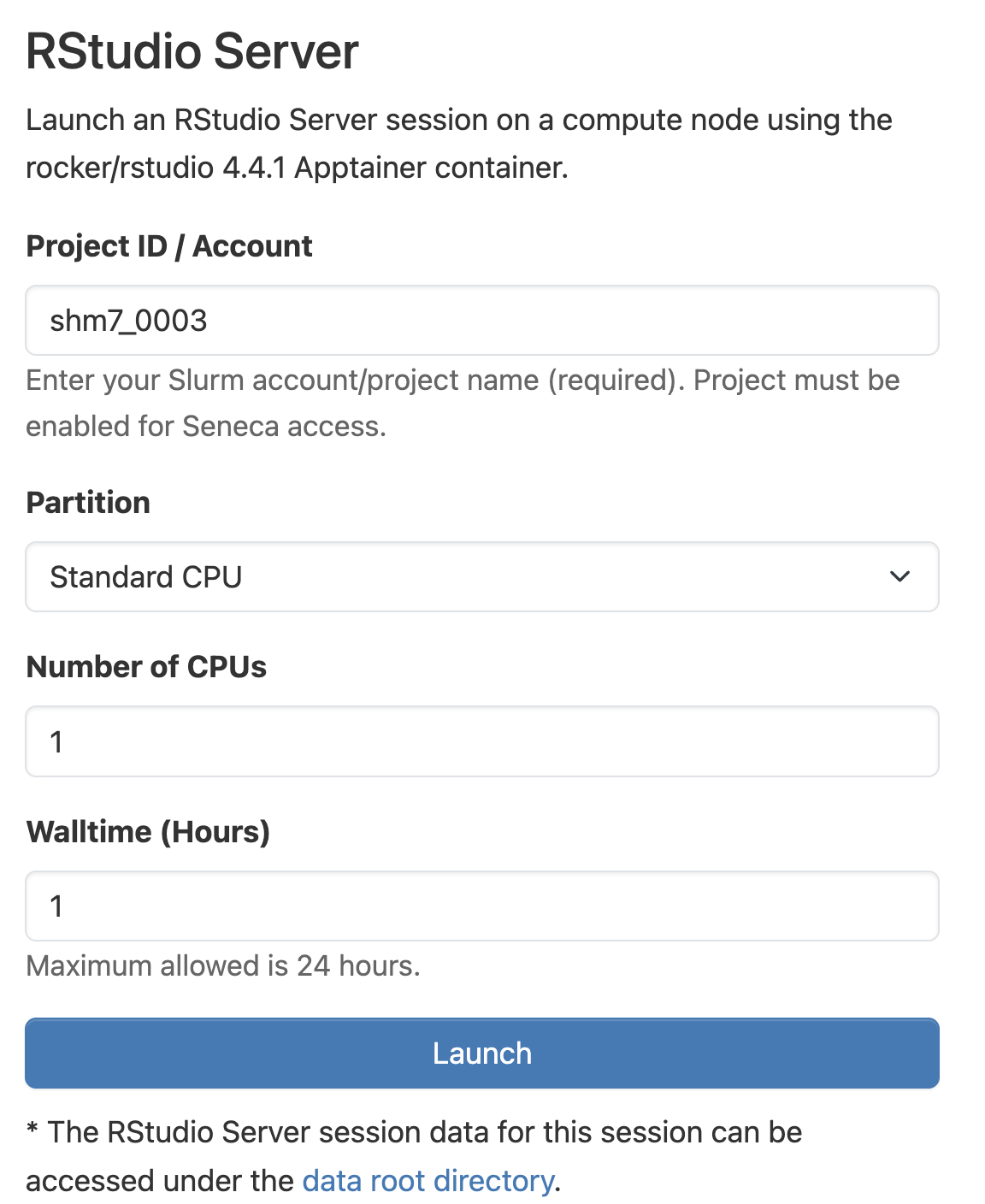
In the top navigation bar, click Interactive Apps and choose RStudio Server. Fill out the resource form:
- Project ID / Account: your CAC project name. The project must be enabled for Seneca access.
- Partition / Resource: see Selecting Resources.
- Number of CPUs: CPU cores allocated to your session.
- Walltime (Hours): session length, up to 24 hours.
Click Launch, then Connect to RStudio Server once the session is running.
Launching RShiny Server
In the top navigation bar, click Interactive Apps and choose RShiny Server. Fill out the resource form:
- Project ID / Account: your CAC project name. The project must be enabled for Seneca access.
- Partition : see Selecting Resources.
- Number of CPUs: CPU cores allocated to your session.
- Memory: Amount of Memory for RShiny application.
- Walltime (Hours): session length, up to 24 hours.
- Shiny App Directory: Enter the file location of your RShiny Application. Leave it as default to see example applications.
Click Launch, then Connect to RShiny Server once the session is running.