Getting Started with Open OnDemand
Open OnDemand is a web-based portal for accessing Seneca cluster from your browser that requires minimal setup. It is convienient for users who are not familiar with command line interfaces. This page covers how to log in and details each section of the dashboards. For details, see the File System, Cluster, Job Submission, and Interactive Apps pages.
If you would like a specific interactive application to be made available through Open OnDemand, please send us your requestion at CAC help.
Logging In
First-Time Login
Before your first login to Open OnDemand, you must access the Seneca Login node from a terminal at least once. See Seneca Cluster SSH.
Accessing the Portal
Navigate to Seneca's Open OnDemand https://seneca-ood.cac.cornell.edu/ in a web browser. You will be redirected to Globus for authentication.
On the Globus login screen, select your institution associated with a CAC project with access to Seneca and click Continue. You will be forwarded to your institution's login page. Log in with your institutional credentials, which will redirect you back to the Open OnDemand dashboard.
The Dashboard
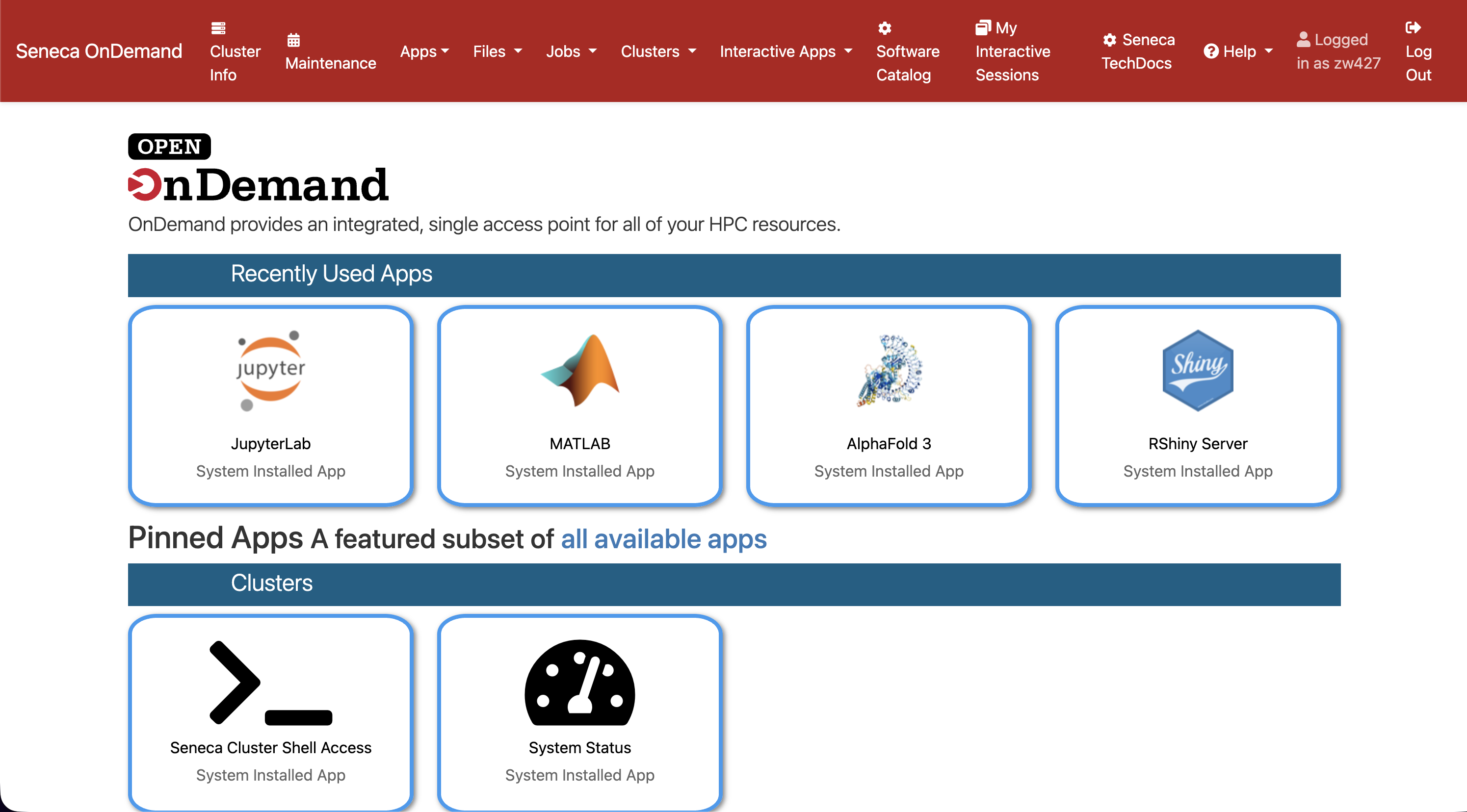
Everything in Open OnDemand is accessible from the top navigation bar on the Dashboard.
Files
The Files menu opens a browser-based file manager for your home directory and BeeGFS. Upload, download, edit, and organize files without leaving the browser. See File System.
Clusters
The Clusters menu gives you a browser-based shell on a Seneca login node and a live system status view. See Cluster.
Jobs
The Jobs menu contains Job Composer (for building and submitting batch jobs through a GUI) and Active Jobs (for monitoring the queue and current jobs). See Job Composor.
Interactive Apps
The Interactive Apps menu launches graphical applications (RStudio, JupyterLab, MATLAB, and others) on Seneca compute nodes. See Interactive Apps.
My Interactive Sessions
you can connect to, manage, and end any Interactive App sessions you have launched on the My Interactive Sessions page.
Recently Used
In the dashboard, the recently used applications section shows the most recent applications you have launched. Note that clicking on an application in this list will automatically start a new session with the same slurm job configuration as the last session.