SSH Tunneling
SSH tunneling allows a client to access a server over an ssh connection. This technique is often used when:
- The server is blocked by a firewall for security reasons, or
- The administrator or user needs to ensure all communications between the server and the client are encrypted using ssh.
The following diagram shows an RDP client accessing over an ssh tunnel an RDP server listening on port 3389 running on a Linux host:
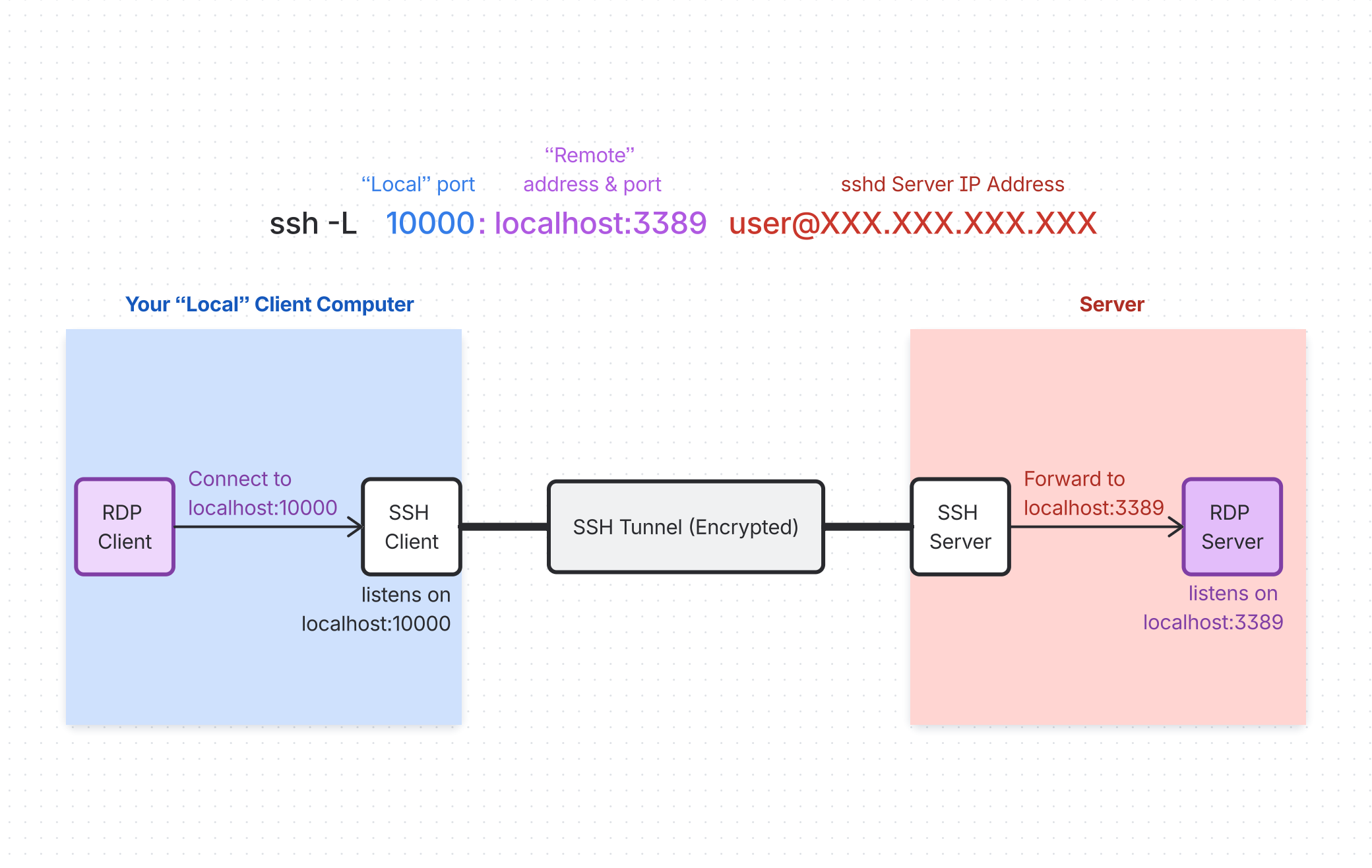
Connect over an SSH Tunnel using OpenSSH
From a Linux or Windows 11 client computer with OpenSSH installed:
- In a terminal, run the
ssh -L 10000:localhost:3389 <user>@XXX.XXX.XXX.XXXcommand where<user>is your user name on the remote Linux server andXXX.XXX.XXX.XXXits IP address. This command opens an ssh tunnel between port 10000 on the client and port 3389 on the remote server.- Authenticate to the remote Linux server using either your password or ssh key. Keep the ssh tunnel open by keeping this ssh session alive.
- In another terminal window on the client computer, open the RDP client (e.g.
remminaorgnome-connectionson Linux clients) and connect tolocalhost:10000(i.e. port 10000 on the client computer). The RDP client should connect to the RDP server on the remote Linux server. - To disconnect from the RDP server, first log out of the RDP server using the RDP client. Terminate the ssh session.